VLC Media Player Hidden Tips and Tricks


VLC is the most popular media player used by many people all over the world. It has all the popular codecs which helps you to play any kind of major video files.
1. Ripping DVD’s: VLC player can be used to Rip DVD’s in a very easy manner. To rip any dvd just go to media menu and click covert/save. Now just specify the file name and the format and click save.
2. Record Videos: with the new VLC player you can record any videos during playback. Accessing record button just go to view > advanced menu > record button. Now when movie is playing clicking this button will start recording and clicking it again will stop the recording.
3. Playing .RAR Files: yes that’s right this trick may shock you out but VLC player can seriously play the .RAR files simply load it and it will play.
4. Play in ASCII mode: VLC media player can play files in ASCII mode. To play in ASCII mode, Go to Tools > Preferences > Open the video section and choose color ascii mode and click save and now play.
5. Listening Online Radio: vlc media player also includes online radio stations you just need to enable it through Media > Services Discovery > Shout Cast Radio Listings. Now you can open playlist and browse it.
6. Converting Audio and Video Formats: in vlc player you can convert audio and video formats simply going to Media > Convert/Save. Now simply add the file and choose the output format and click save.
7. Download YouTube Videos: simply grab the YouTube video url and paste it in the Media > Open Network Stream > Paste the URL and click Play.Once VLC starts streaming the video, click Tools>Codec Information and at the bottom of the window you will see a Location box. Copy the URL and paste it on your browser’s address bar. The browser will now download the file which you can save it to your hard disk. Alternatively, you can record the video.

Backup Google Data with Google Takeout


Google Takeout is a new service by Google which offers you to backup all your Google data from one place. Services included for backup are BUZZ, CONTACTS AND CIRCLES, PICASA WEB ALBUMS, PROFILE.
The service is extremely easy to use you just have to sign in @ https://www.google.com/takeout/

you simply have to click CREATE ARCHIVE and loading process will start to assemble your package and you can also choose the Choose Services Option to choose from some specific service


Now as soon as you click create Archive after selecting the packages you wanna backup you will see the downloading progress bar, and it starts creating your package which will be presented as a downloadable file.

How to Jailbreak iPad 2 4.3.3 with JailbreakMe 3.0


Jailbreaking is the way you can free up your iPhone from the Apple Restriction to many useful services and to Jailbreak with JailbreakMe is the easiest way to free your device on the GO.
Comex released his Jailbreaking Tool which will Jailbreak your iPhone right from the web browser just by going to the website and choosing install Cydia.

Follow the below steps to Jailbreak with JailbreakMe .:

Jailbreak Process Demonstrated Below is for iPhone but its same for the iPad 2.
1. On your iPhone go to www.JailbreakMe.com
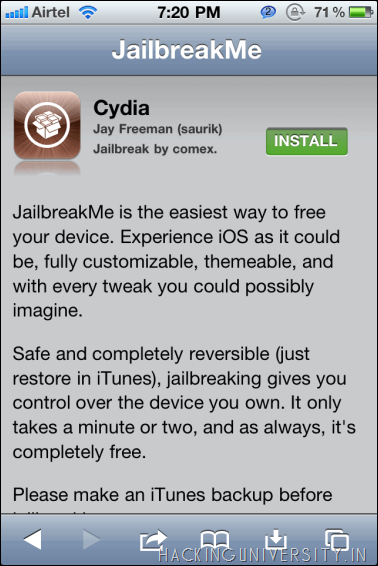
2. Now you will see something like below .:
How to Jailbreak iPad 2 4.3.3 with JailbreakMe 3.0
2. Now click on FREE and it will give you option to INSTALL like in the above image.
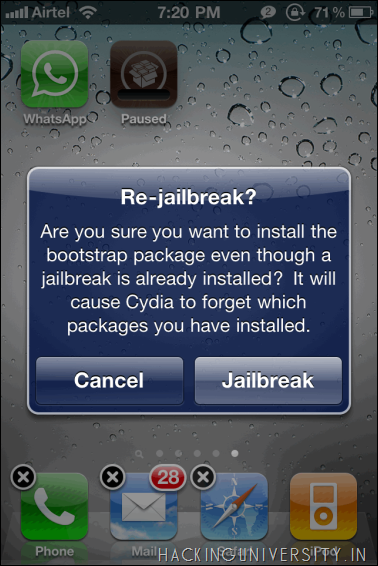
3. After clicking INSTALL your browser will close and you will see something like below .:
How to Jailbreak iPad 2 4.3.3 with JailbreakMe 3.0
4. Now just click on Jailbreak like in the above image and it will start installing Cydia on your Device.
5. Now after perfect installation you will get a pop up that cydia has been installed on your device that’s it.
Devices Compatible : iPhone 4 and iPad 2 Running 4.3.3, support for all other firmware's will be added later.
So NJOY this easiest way of jailbreaking and freeing up your iPhone, hope this works for you if you have any problem you can comment below for the solution.


How to Read Deleted SMS in Mobiles


Hello everyone today we are going to discuss about how to recover deleted SMS Messages hence read them right on your phone.
Now this trick is valid on Nokia Mobiles and I Tested it and found this trick to be working successfully. Ok now what's the trick is that sometimes your SMS Messages are saved to memory card as they are received from your friends, sometimes this is the default function in Nokia Mobiles and sometimes you have the option to save them @ the place you want. So ok lets get started.

Things you will need .:

1. A Nokia Mobile supporting application download.
2. Second search for any File-Manager like ( FExplorer Fileman or any other )
3. Install that application on your cellphone.
4. Now when everything is ready follow the below steps .:

Procedure to Read Deleted SMS in Mobile .:

1. Open your File-Manager i.e.. FExplorer or Fileman
2. Select the memory card drive that can be C: or D: just check it out.
3. Now after opening drive navigate to System > Mail
4. Now in Mail folder you will see different folders like ( 0010001_s )
5. Now the above folders are the actual messages which you are going to read, now there will be many folders which are actually all the messages now search for the one you are browsing and than do not open that directly as it will not be supported, choose the one you wanna open than choose open > file > hex/text viewer.
6. That’s it now you are reading the deleted SMS which you can copy or transfer into other phone by sending it through Bluetooth.