Windows 7 Crashes On Connecting Portable Device or Media Device

Microsoft has recently announced a problem identified with certain third party portable devices and media devices which may crash Windows 7 and Windows Server 2008 R2 operating systems. This problem is caused because of a Windows in-built driver race condition on attaching certain devices to Windows 7Computer. There has been no announcement about the list of such devices by Microsoft.
windows-7-logo
The error or the Blue Screen Of Death which appears on detecting such devices display a message something like :
STOP: 0×00000001 (parameter1, parameter2, parameter3, parameter4) APC_INDEX_MISMATCH.
Microsoft has officially shared this problem at this support page. The fix for this problem will be rolled out with the official service pack 1 or the Windows 7 which may arrive around mid of year 2011. Till then, Microsoft has released a hotfix (link at the end of article) which will fix this issue.

So if you have every experienced that your Windows 7 desktop or laptop computer crashes on attaching certain portable device or certain media device, then it is advisable to download the hotfix and install it on your Windows 7 or Windows Server 2008 R2 OS.

Tweak Registry to Fast Shutdown Windows XP and Vista

When ever you click the shutdown button on your PC running Windows XP or Vista it usually stand still without any activity and sometimes blinks, well at that stage it just closing all the applications and it might take some minutes, but I just found a easy registry tweak that can make that process actually very fast just follow below steps and you will be able to shutdown at a pace of time.
Well we are going to tweak the registry entries so its basically a technical work if you are not comfortable with editing your registry than you should not do it without consulting any of your good geek friend. So follow below steps separately for Windows XP and Vista.

For Windows XP follow below steps ::

  1. Click Start > Run or Press Windows + R key and type down regedit to open the registry editor. (Make sure to backup your registry by going to File > Export)
  2. Now navigate to HKEY_CURRENT_USER > Control Panel > Desktop and on the right hand side check for WaitToKillAppTimeout entry and double click on it.
  3. Now just change it value in between 4000 to 5000 well the more value the faster it will show the end task dialog. This value is basically in milliseconds.
  4. Now with this we have tweaked to show the End Task dialog as soon as the time expires now we have to tweak another entry to not show the End Task Dialog and directly turn off the system.
  5. Again navigate to HKEY_CURRENT_USER > Control Panel > Desktop and on the right hand side search for AutoEndTasks entry and double click on it and change its value from 0 to 1.
  6. Boom now your Windows XP shutting down speed is tweaked and you can restart and see its working on second shutdown.


For Windows Vista follow below steps ::

  1. Open registry editor and navigate to HKEY_LOCAL_MACHINESYSTEMCurrentControlSetControl and on the right hand side check for WaitToKillServiceTimeout entry and double click on it and change its value to 5000 something.
  2. That’s it you do not need to do any other tweak for vista but just restart and check if its working or not.
Hope this tutorial works for you make sure to comment if you find out any problems modifying your registry entry.


Batch Reply for Gmail can Respond to Multiple Emails at Once

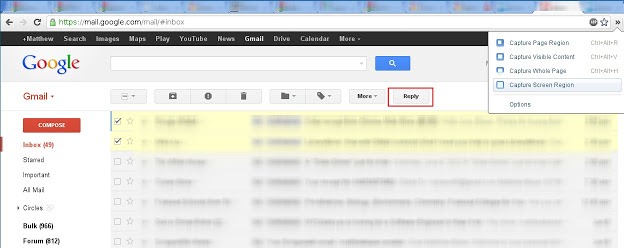
If you are the person who receives emails in bulk amount, I mean lot of them for just one same reply. If you just have to select reply for every email and than write down the same stuff again and again than Batch Reply for Gmail extension is just meant for you. It a simple chrome extension than allows you to email multiple persons at once with the same reply. You just select the emails and than hit the same reply button as usual.
batch-reply-chrome
This chrome extension does not add any other separate button for doing this task, as soon as you install this extension in your chrome browser you will just have to select few emails to which you wanna the same thing and than press the reply button that’s it. So now if you a teacher or event manager and you get the same reply from your students or people than you can select all those emails and reply them at once with the same reply.