Use Google to get Serial for any Software

Most of the people downloading a trial and using it, only after the Expiration of trial they try for Serial No, Keygen, Patch. But many aren't known where to get Serial No, Some websites May be infect your system with Trojan horse, Viruses, Ad ware, Spy ware....

So for beginners this is a simple way to find hack with less
Effort and it saves time too, But make sure you have antivirus
activated before trying to get some Serials, Patches to avoid
data loss.

Just follow the steps as instructed below:

1) Go to Google
2) Type this syntax in the search bar " 94FBR"
3) Replace Product name with desired software and leave a
Space then type 94FBR
4) Press enter, that's it

Now you receive Many pages which contain Serial no,
Patches....

Just make a try, this simple trick works for many people.

Demo: 94fbr Photoshop CS5
(It will list the pages contains the keys for Photoshop CS5

All Mobiles Secret Codes

Samsung Secret Codes

Software version: *#9999#
IMEI  number: *#06#
Serail number: *#0001#
Battery status-Memory capicity: *#9998*246#
Debug screen: *#9998*324# - *#8999*324#
LCD kontrast: *#9998*523#


LG Secret Codes

LG all models test mode: Type 2945#*# on the main screen.
2945*#01*# Secret menu for LG
IMEI (ALL): *#06#
IMEI and SW (LG 510): *#07#
Software version (LG B1200): *8375#
Recount cheksum (LG B1200): *6861#
Factory test (B1200): #PWR 668
Simlock menu (LG B1200): 1945#*5101#
Simlock menu (LG 510W, 5200): 2945#*5101#
Simlock menu (LG 7020, 7010): 2945#*70001#


Motorola Secret Codes

IMEI number: *#06#
Code to lock keys  Press together *7
Note: [] (pause) means the * key held in until box appears.
Select phone line - (use this to write things below the provider name):
[] [] [] 0 0 8 [] 1 []
Add phonebook to main menu:
[] [] [] 1 0 5 [] 1 []


Nokia Secret Codes

*#06# for checking the IMEI (International Mobile Equipment Identity).
*#7780# reset to factory setting
*#67705646# This will clear the LCD display(operator logo).
*#0000# To view software version.
*#2820# Bluetooth device address.
*#746025625# Sim clock allowed status.
*#62209526# - Display the MAC address of the WLAN adapter. This is available only in the newer devices that supports WLAN.

Balance Transfer Tricks For All Mobile Networks

This trick will help those people who want mobile balance in an Emergency and there is not any Mobile retailer. But ,Friend of person have same mobile network then he can transfer balance from his mobile to that mobile. 

Here Are Working Balance Transfer Tricks For All Mobile Networks.


Airtel : 

To Transfer Balance In Airtel Just Dial *141# And Follow The Onscreen Instructions.
You Can Transfer From 5 To 30 Rupees Of Balance In Airtel.
Tata Docomo :
To Transfer Balance In Tata Docomo SMS as BT MobileNumber Amount And Send It To 54321. 
E.g. BT 9876543210 30 To Transfer 30 Rupees Of Balance.
!dea :
To Transfer Balance In !dea Network Send SMS as GIVE MobileNumber Amount And Send It To 55567.
E.g. GIVE 9876543210 30 To Transfer 30 Rupees.

Vodafone :
To Transfer Balance In Vodafone Dial *131*Amount*Mobile No#
E.g. *131*50*9876543210# To Transfer 50 Rupees Of Balance.
Uninor :
To Transfer Balance In Uninor Just Dial *202*MobileNumber*Amount#
E.g. *202*9876543210*30# To Transfer 30 Rupees.
Aircel :
To Transfer Balance In Aircel Just Dial *122*666# And Follow The Instructions.
You Can Transfer 10,20 Or 100 Rupees Of Balance.


BSNL :
To Transfer Balance In BSNL Just Send SMS GIFT MobileNumber Amount To 53733.
E.g. GIFT 9876543210 50 To Transfer 50 Rupees Of Balance.

How To Delete Your Facebook Account Permanently ?


Facebook is a great social networking site in these days.I think that Facebook is better. Sorry , it's my opinion , not yours. But sometimes we want to deactivate our Facebook Account .I do not know that what's the reason? Daily ,many Facebook Users deactivate their Facebook account.
Deactivation of Facebook account is not deleting process. When you deactivate your Facebook account then  it's been the step to block of all your friends .They can't like, or contact with you.
We are going to talk about today's topic step by step with the help of screenshots.

How to deactivate your Facebook Account ?

If you deactivate your Facebook account  & when you login again in your Facebook account  .Then your Facebook account is activated again.

  • Just click on image to Deactivate your Facebook Account.
  • You can put certain reason in box.

How To Delete Your Facebook Account Permanently ?

In this state ,your all Facebook information like pictures,status,friends list will be deleted permanently.You can never browse again your Facebook Account.
  • Click on given image to delete Facebook Account Permanently.

NOTE-First,read all information carefully before to deactivate your Facebook Account permanently.

24 Great Facebook Tricks and Hacks

24 Great Facebook Tricks and Hacks

1. Hide Your Online Status From Selected Friends:

So you want to use Facebook chat but don’t want some people to see your online status? Simply open up the Facebook Chat and click on Friends List. Start creating a new list called BlockList.

Once the list is created, add those friends to the list that you want to appear offline to. When the list is complete, hover your mouse to the little green icon adjacent to the list and click Go Offline. Bingo! You will now appear offline to everybody in the BlockList.

2. View a Friend’s Profile Without Messy Applications:

If you are like me, you often get annoyed by the dozens of silly applications that people have added to their profile. Here’s a Grease Monkey script that allows you to view any profile without all those applications. Remember: the Mozilla Firefox web browser is a prerequisite for running Greasemonkey.

3. Display Your Facebook Status On Your WordPress Blog:

Want to display your Facebook status updates on your WordPress blog? There is a plugin that does exactly that. StatusPress lets you display your status updates to a widget on your WordPress blog.

4. Access Facebook Chat Through Your Desktop:

No need to go to Facebook.com if all you want to do is use Facebook chat. You can do it right from your desktop using clients like social.im , Adium or ChitChat.

5. Update Facebook Status From Firefox:

If you are a firefox addict you don’t need to use any other software to update your Facebook status. Simply install the FireStatus add-on and update your status right from your browser. You can also use the Facebook Toolbar to completely manage Facebook from your Firefox browser.

6. Create A Photo Collage From Pictures Of Your Facebook Friends:

Easily create a photo collage from profile pictures of all your Facebook friends using a simple Facebook app called Photo Collage.

7. Add A New friend But Hide It From Your Status Update:

A great tutorial by Tim Watson walks you through the process of hiding specific actions from your status updates.

8. Schedule Facebook Messages To Be Send Later:

If you want to schedule your Facebook messages to be send sometime in the future, Sendible is a great tool to do that. You can also use Sendible to schedule your status updates.

9. How To Share Flickr Photos On Facebook:

My Flickr is a Facebook application that lets you display your Flickr photos and photo sets on Facebook so your friends can view and comment on them without leaving Facebook.

10. How To Download Facebook Photo Albums:

Ever felt the need to download complete photo albums from Facebook. You can easily do it with either a Windows desktop application named FotoBounce or a great Firefox add-on FacePad.


11. Upload Photos On Facebook From Your Phone:

All the smart phones like iPhone and Blackberry make it simple to upload photos to your Facebook account but how would you do it if you have a regular phone? Here is a great tutorial to walk you through that.

12. Magic Circles On Facebook:

You might have heard about the Konami code that makes red blurry circles on your Facebook page. This might be one of the most popular Facebook hidden tricks. Here’s how to do it:
Press Up, Up, Down, Down, Left, Right, Left, Right, B, A, Enter key then press up & down & Magic circles will appear!
To stop them simply reload your page.


13. Use Your Facebook Like A Pirate:

Do you love talking like a pirate? You can set your Facebook to appear like a pirate page by going into Current Language Settings and setting it to English (Pirate).


14. How To Insert Cool Symbols In Your Status Updates:

Make your status updates interesting by inserting cool symbols. Simply copying them from this list and pasting in your status updates.


15. Automatically Poke Friends That Poke You:

Don’t have enough time to poke back friends who poke you on Facebook? Automate it with a Grease Monkey script called Facebook Autopoke.

16. Upload Photos From PicasaTo Facebook:

Upload photos to your Facebook account directly from Picasa using the Picasa app for Facebook. You can also upload the Picasa captions and resize your photos before uploading them to Facebook.

17. Search Facebook Like A Pro:

Not everybody knows how powerful Facebook search is. Similar to any large search engine, Facebook search has a lot of advanced options to help you search like a pro. For example if you are looking for a person named John Marsh and filter your results down to only people who are married, you can try name: John Marsh status:married. A complete list of search tips for Facebook can be found here.


18. How To Update Facebook Status From Gmail:

Facebook gadget for Gmail allows you to update your Facebook status right from your Gmail.


19. How To Access Gmail From Facebook:

If you seldom have to leave Facebook just to go check your Gmail inbox, check out Fmail. It is a great application that lets you check your Gmail from within your Facebook inbox.

20. See Facebook Twitter style:

If you love Twitter more than Facebook, you can view your Facebook just like you view your Twitter using this grease monkey script.

21. Import Facebook Friends To Twitter:

FB140 is a simple tool that lets you find all your Facebook friends that are using Twitter so you can easily follow them.

22. Access Facebook From Microsoft Outlook:

This is a great tip for people attending colleges or working in places that block Facebook, but allow you access to Microsoft Outlook. Simple install the FBlook plugin and access Facebook from Outlook.

23. Display Your Facebook Status Upside Down:

This is a cool and fun trick. To display upside down status updates, simply head over to FlipText and type in your status. Then simply click on Flip Text and copy-paste the upside down text into your Facebook status box.

24. Update Facebook Status Using Twitter:

Wouldn’t you love to update your status on both Facebook and Twitter at the same time. Just install the Twitter application for Facebook. Once synced, your tweets including the #fb tag would automatically be posted as status updates on your Facebook.

How To Restart Windows Without Restarting

Guys sometimes you come across a stage where you need to restart your computer at the time of installing new software well but you don’t wanna restart as due to some reasons so what we can do is a Cold Reboot which does not Restarts your Computer but Restarts your System.

Follow these below Steps to see how it work: 

1. Whenever you want to Cold Reboot your Computer simply HOLD Shift Key and then click on restart button check example below...
 
2. So now you got it how you can easily restart your Windows without restarting your computer.
 
3. So have fun guys and make sure you comment below if you find any problems.

Free Face Recognition Software for Automatic Log in to Windows 7


Now days technology is changing very rapidly and every day something new discovered. Now Login to windows 7 through Face Recognition using a web-cam is one of the enhancements; a lot of us experimenting. Not only this save our typing but also is a more secure way if very much conscious about the security issue.

If you are also using Windows 7 and do have a webcam attached to the pc then you can test this a very little and tiny application called Blink; which may enable you to  log in to windows just by looking into the webcam only for just a second and your account wil be logged? How this is made possible because of the free software BLINK by Luxand which employs the advanced face recognition technologies to provide automatic, quick and reliable log in to one or many computer users.

 
Windows 8 is expected to have an Android like pattern logon screen where users can set a password based on user patterns. That can turn worth while on touch screen devices and get rid of the boring text passwords. That being said Windows 7 users don’t have anything cool to boast about at least when at logon screen. Neither do we have pattern logon or facial recognition screen in stock OS. While pattern logon may hit Windows 7 in the form of third-party app soon (Developers! Developers!) here is a free facial recognition software add-on.

This tool can be used as a free alternative to the commercially available “Fast Access” face recognition software that comes installed on many Dell laptops. Unlike Blink!, Fast Access being a premium product is feature rich.

Bypass Software Trial Period Manually in Windows

Now you can bypass software trial period manually and use that again and again.

Follow the below Steps:

1. First you have to uninstall that application whose trial period is over and you wanna use it again.

2. Now open the “Regedit” you can open it by going to Start > Run > Regedit.

3. Navigate to HK Local Machine > Software > Your Software name.

4. Now simply Delete the Key.

5. You have to do this for HK Current user if key is there too.

6. Now go to Run and Type “%temp%”.

7. Delete all files in temporary folder, these are all the files created by software temporary installation and de-installation.

8. Go to C:// Users > Username > App-data ( Check all 3 directories “Local”, “LocalLow”, “Roaming” for your software entry there might be a folder for your software, if you find one Delete that.

9.Now every main step is done you can restart your computer and then Reinstall application.

That’s it now you will get your software’s trial period back, well yes steps are long but it’s the manual way you can bypass the trial period of your software and you can perform this everytime your software expires.

Create Bootable USB Pen Drive for Windows 7

Installing Windows from a USB flash drive has several advantages : First of all, the overall speed of the installation process will increase significantly, carrying a USB stick is much more convenient than a DVD, and finally it becomes possible to install the OS even on those systems that do not have a DVD drive, such as a netbook.
In this post, I will show you how to load the Windows installation on to your USB flash drive and make it bootable just like the DVD.

Tools Required :-

1. USB flash drive with a minimum capacity of 4 GB.
2. Windows 7 Setup DVD.

Step 1 : Plug-in your USB flash drive.
Step 2 : Open the PowerShell (OR Command Prompt if PowerShell Not Exist). If you are using Windows 7/Vista then open it with administrator rights*.


* Goto Start -> All Programs -> Accessories ->Windows PowerShell ->  Right-click on “Windows PowerShell” and select “Run as Administrator”.

Step 3: In the PowerShell, type DISKPART

This will start the Microsoft DiskPart utility as shown below:
Now issue the following command: LIST DISK
This will show you a list of  available disks on your system.
Disk 0 is usually the hard disk. In my case, 
Disk 1 is the USB drive (this can be a different one in your case).
Now issue the command as shown below:

SELECT DISK 1


above command, 1 is the USB drive number on my system. If you have a different number on your system, then you need to replace 1 with that number.

Step-4: Now issue the following list of commands one by one as shown below:

CLEAN
CREATE PARTITION PRIMARY
SELECT PARTITION 1
ACTIVE
FORMAT FS=NTFS QUICK
ASSIGN
EXIT


Close Power Shell and proceed to the next step.

Step 5: Insert the Windows 7/Vista installation disc and note down the “drive letter” of your DVD drive. In my case, it is “H:”.

Open the command prompt. If you are using Windows 7/Vista then open it with administrator rights*.
* Goto Start -> All Programs -> Accessories -> Right-click on “Command Prompt” and select “Run as Administrator”.

Now type the following list of commands as shown below:
H:
CD BOOT
BOOTSECT.EXE /NT60 G:(NOTE:
G: is your USB drive letter)

EXIT


Step-6: Copy the contents of your Windows 7/Vista installation disk into the USB flash drive.
Directly Copy-Paste All DVD file into Usb Stick Then…

Your USB stick is now ready to boot and install the OS for you. Don’t forget to enable the “USB Boot” option and change the “Boot priority to USB device from hard disk” in your BIOS settings.

How to Unlock Password Protected PDF and Ebook Files

PDF files can be locked and password protected by several ways. And they carries several meanings as well. Some password protected PDF file can be viewed and read easily but we’ll need to input password to copy the text and images from it. Besides copy paste, the PDF file can be password protected to publish it in print media by disabling or password protecting the Printing ability of the document. Unless you read eBooks in printed form, it’s not necessary to unlock these PDF as most of the time you read it in your favorite eBook reader.

Unlock-PDF.com is free online tool to unlock the PDF files.

Simple steps to unlock the PDF file..

To unlock PDF files, click on Choose File and click on Unlock File button. After unlocking, the browser will automatically download the unlocked PDF file


Enjoy with your Unlock Files

Make Your Laptop As Wi-Fi Router To Share Internet For PC Or Phone

How To Make Your Laptop or notebook As Wi-Fi Router Or Hot spot To Share Internet On PC Or Phone  .This is a nice trick to make your laptop as Wi-Fi hot spot or router.Suppose you have a iPhone or Android or may Symbian having Wi-Fi and you want to use internet via wifi in your phone.Or may be you internet package in your mobile just Run out but still you want to use internet on your phone.Then this trick sure help you.We know that wi fi is great to sharing internet.And you can share you internet via wifi from laptop to android or iPhone or may Symbian or nay high end phone having wi-fi.I have seen many post where people make their laptop wi-fi router or hot spot using ad hoc method.But in this method you can only share your internet to another PC not phone.As when you will try to search the Wi-fi network you will get that no network found. So this method not useful.Then what to do ? just follow the step.


Step 1. Connect your PC to internet, Download this software Connectify
Step 2. Install it and reboot your PC then on your PC wi-fi
Step 3. Now open the Software , for free version click on try
Step 4. Put a name in Wi-Fi name option
Step 5. Put a password
Step 6. Select your PC internet , in Internet to share option.
Step 7. Select you laptop wi-fi in Share Over option
Step 8. Select the Sharing  mode of password , select WPA2
Step 9. Now click on Start Hotspot
Now enjoy you wi-fi router or hotspot.

How to Reset Firefox’s Forgotten Master Password Easily

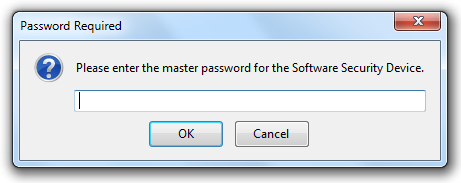
Master Password is a way to add another layer of security to your locally saved usernames and passwords. Whenever you forgot your username or password for a specific account, you can check that username by going to the tools but now you have to enter the master password for gaining access to those usernames and passwords.master password firefox
Now in some cases you might forget your master password and loose control to your database, well in that case firefox officially provides a simple and easy way for resetting your master password and choosing another good password.
Remember Resetting your master password will remove all the usernames and password saved locally for security reasons.

Resetting Master Password :

1. Open Firefox and in the address bar enter the below location and press enter.
chrome://pippki/content/resetpassword.xul
2. Now you will see the reset password page like below, no click on the reset button.
resetting master password firefox
3. That’s it now your master password will get reset and you can choose another good password.

Make Mozilla Firefox Home Page Look like Windows 8 Start Screen

If you are using the newly launched Window 8 along with Mozilla Firefox browser then you can easily enjoy the Window’s 8 start screen look to it instead of its default look. A deviant art member has made a HTML + CSS + jQuery start page for the Mozilla Firefox. Below are the steps for setting the Windows 8 Metro UI start screen in Mozilla Firefox.

  1. First you have to Download the zip pack from the internet.
  2. Now, you have to unzip the folder and then extract the contents to a new folder on the location of your choice.
  3. After this you have to open the index.htm file present in the unzipped files.
  4. Now in the Firefox browser you have to navigate to Tools and then to the Options.
  5. Now in General settings you have to choose the Current Page for setting the freshly opened index.htm as your Firefox home page.
  6. With the help of new home page you can easily access Groove shark, YouTube, twitter, face book, BBC news, Google search, CNN, Yahoo and last.fm. You can also customize this home page by simply editing source.xml file.

Use Three Passwords to Log-in Your Facebook Account

Use Facebook with three passwords
You can log into your Facebook account with three different passwords. This is not a trick, but an option by Facebook. You can do it with your one password in three different ways.

When you enter your password in your mobile Facebook then the first letter is capital and you change it to small, so to prevent this problem Facebook introduces this option to use same password by changing the cases of the words. The basic thing is that Facebook passwords are not case sensitive.

For example if your password is accu(gpu then you can use it like this:

• Original: accu(gpu 
First letter capital: Accu(gpu  
All case reversed: ACCU(GPU i.e. all small letters converted to capital.


You don't have to worry about the security because it still has unique letters, just flipped and hence still safe.

Thanks ZDnet.com for this idea

Resetting Nokia Security Code

If you forgot Your Cell Phone security code now its very easy to restore your security code to default, follow these steps one by one to how to reset your phone security code

Tools you will be need :-

1- Nokia PC Suite (if you don't have one then download latest version from nokia.com)
2- Data Cable
3- NSS = Nemesis Service Tool ( you can download its from HERE)

First install Nokia PC Suite
Install NSS
Aafter installation complete some pc need to reboot

Plug your Phone To pc via Data Cable
Click on phone info tab click on scan button it will be scan your phone and will be show you your phone software version and IMEI serial number.

Click on tools tab then click full factory button and finally click on reset button
its done now your new security code 12345 which is nokia default security code
 
All Done...

Find Someone’s IP Address When Chatting On Facebook

Want To Trace Someone’s  IP Address When Chat On Facebook ?

First Open Run Box By Pressing Win+R 

Then Type cmd

note: before trying this make sure you close all the other tabs in your browser. and only facebook is open. also if possible delete all the history and cache from your browser.When command prompt opens Type the following command and hit Enter.
netstat -an
And you will get all established connections IP addresses there. Note down all the suspicious IP’s

The Next Step is to Trace that user using his IP address.

To do so we will be using IP tracer service. Go to the below address and paste the IP address in the box that says “lookup this ip or website”. and it will show you the location of the user.
It will show you all the information about that user along with his ISP and a Location in the MAP. Now in the MAP Just click on “click for big ip address location” in the big picture you can actually zoom in. and try to recognize the area. If any serious matter just note down the ISP details in that page and contact them about the IP. they will respond you.