How to Fix or Resolve Google Chrome Crashing Problem

Crashing while browsing is something which really makes anyone to bang his PC, well when sometimes you browse internet and you are on some really important thing which might kill you if lost and suddenly browser crashes that’s what I faced last night while browsing through Google Chrome Browser and I was like in a deep shit. Well but later I figured out the real reason behind this problem was some software confliction. Well now you might be thinking what is this software confliction well Google Chrome still lacks some software's compatibility so if you have installed some third party software's than they might be conflicting with Google Chrome, that’s why Google Chrome is crashing.

Software's that might Crash Google Chrome

There are plenty of software’s that come up bundled with plugins that they automatically install in your browsers to get proper cooperation with them, well the one most popular and much more conflicted is the IDM (Internet Download Manager) and you will probably get most crashing problems due to this software but it can be any from the below mentioned list.
  1. Safe Eyes Parental Control Software
  2. ContentWatch
  3. Microsoft Office XP Input Method Editor
  4. Naomi Web Filter
  5. Trusteer Rapport
  6. Hide My IP
  7. Venturi Firewall
  8. PPLive
  9. Internet Download Manager
  10. ESET NOD32 Antivirus only 2.7 version
  11. iS3 anti-spyware (STOPzilla)
  12. NVIDIA Network Access Manager and NVIDIA nTune
  13. WinMount
  14. FolderSize
  15. Speedbit Video Accelerator
Now these above software's can cause Google Chrome to crash, but the thing is how to exactly check which one is really conflicting with Google Chrome to crash. To check this open Google Chrome and type about:conflicts and hit enter you will see something like below.
chrome-crash-conflicts
Now you can see the orange line in the image shows the software conflicting with Google Chrome so the best way is to disable or uninstall that software.

advanced-browser-integrationDisable Advanced Browser Integration

But if in your case its really showing the Internet Download Manager than there is no need to uninstall that but you can simply disable the Advanced Browser Integration in Internet Download Manager options menu like below.
So this will simply solve your problem but if still problem persist than simply uninstall that software which is conflicting and everything will be fine so remember to check conflicts by typing about:conflicts in Google Chrome and disabling or uninstalling the conflicting software.


Check Computers Using Your Wi-Fi Connection

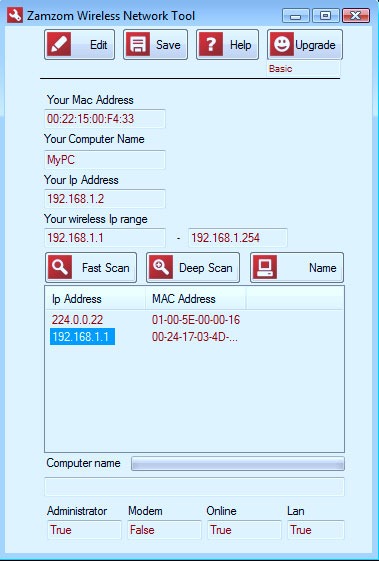
Is anyone using your Wi-Fi internet connection and you are not aware who is he or she who is continuously making your bills and decreasing your speed well now you can easily figure out who is using your Wi-Fi internet connection.
ZamZom provides a great freeware Wi-Fi utility which can detect all the suspicious computers using your W-Fi internet connection.
Check Computers Using Your Wi-Fi Connection
So you can download the utility from ZamZom official website and use it as you want as its is a freeware so no trial limit or anything.

10 Common Wi-Fi Problem and Fast Fixes to Overcome Them

Wireless technology just changed everything from crappy wires to easy portable network, but still every good thing brings something painful right with it so people face many Wi-Fi problems and we are just going to discus the most common 10 problem people usually face with their Wi-Fi. Well we have some easy solutions that might solve your problem.

#1. I cannot connect to my router, How do I resolve this ?

This is the major problem with many causes and can hit any kind of router no matter it’s the expensive one or just a normal one.
  1. If this problem occurs to you make sure that your router is configured to Dynamic Host Configuration Protocol (DHCP). If its is just try to disable and re-enable it.
  2. The second thing you can try is disabling the WEP security, because this security can interfere and drop your IP address.
  3. The last thing you can check for are the electrical interference something like microwave, alarm clock or any other thing that be interfering with your Wi-Fi router so disabling those devices may help you out.
If you are still not able to get your laptop connected to the router than you can simply reboot your router and computer and than restart again to see if now its working.

#2. What steps should I take to secure my Wi-Fi network ?

This is the normal question that arises in everyone’s mind when they first purchase a new router and get a new broadband connection fit in their house. They just want no outside intruder can access their connection except them so normally there are some steps you can take officially to protect your Wi-Fi Network.
  1. Wi-Fi Router normally comes with a WEP and WPA security encryption in which WPA is the best as it allows you to add numbers and words for premium security. Now to enable this security go to router administrator page by accessing 192.168.0.1 or 192.168.1.1, now under Wireless Security click on enable WPA and add your key and than press save and your router will reboot.
  2. The second thing you can do is Disabling the SSID (Service Set Identifier) broadcasting, so that hackers are not able to see my Wi-Fi network and this will some relief.
  3. The third can be done is too enable the router’s hardware firewall, that will block any suspicious connection.
  4. The last thing you can do is to disable the file sharing option for optimum security.

#3. How do I open ports on my router ?

Many functions and applications like personal web server, online gaming, IP Webcams, FTP Servers require you to open ports on your router to allow outside request to be sent to an internal computer on a home network. Well this procedure is called port forwarding and is pretty simple and can be done on any router with slight change in steps.
Open your router’s administrative page and find the label called Port Forwarding. Now just enter the service name and type your start port and end port numbers. If you are opening only one port than enter same numbers in both fields. Now select TCP as the protocol and click on OK. You can even check your routers website for more detailed instructions.

#4. How to I extend range of my wireless signal ?

Well this is just a long matter of discussion and many ideas can go wrong but still people try to experiment and come up with some innovative concepts on getting your signal pumped up.

#5. How to automatically connect to a Wi-Fi network ?

Sometimes you just want to connect to any network available in your area or maybe somewhere outside, it can be like that Wi-Fi connection does not have any security enabled and its is allowing you to connect but you just want that when ever you are in that range you are connected automatically than follow below steps.
  1. Go to Control Panel > Network Connections, now right click on your wireless network.
  2. Now click Properties > Wireless Networks > Advanced.
  3. Now check out if Radio button next to any preferred network is on just change it too any NON-Preferred network.
  4. Now you will automatically connect to any network in your wireless range.

#6. Which wireless channel should I use ?

Wireless 802.11b and 802.11g routers have at-least 11 channels and some routers come with 6 channel as default. Now if you are experiencing any problems or interference with your neighbor's router. So you can change your wireless channel to avoid any interference, well you can change your channel by going to routers administrator page and than under wireless settings option choose channels and switch to anything else from 1 - 11.

#7. How do I share files on a wireless network ?

You can share files between your computers over a wireless network easily by just configuring it to one workgroup. Now enable file sharing in Windows. Now just right click on the folder you want to share and choose sharing and security from the right context menu and click on sharing tab. Now put check in the folder labeled "Share this folder on a network" and "Allow network users to change my files" to enable other to modify your documents.

#8. Should I allow other people to access my Wi-Fi Service ?

Wi-Fi sharing does not have any potential harm but still some dirty minds can crack out your back, so its recommended that you should not share your internet connection with any stranger or outside intruder. Now if you still want to share your internet connection make sure your firewall is one and file sharing is disabled.

#9. Should I worry about packet sniffer's ?

Well obviously yes packet sniffers can sniff out all the activity you are attempting on that particular Wi-Fi connection, they can read your emails, check out which websites are you visiting and pretty much everything attempted on non secure network, but well yes they will not be able to see your transaction over a HTTPS secured network, so your bank transactions and other e-commerce purchase are still secured.
Well to make this much more secured you can use a VPN network and than you will hide everything from them.

#10. What is a router’s hardware firewall ?

Router’s hardware firewall simply protects your incoming and outgoing connections, so it includes a Network Address Translation (NAT) capabilities that will make your PC invisible to anyone trying to attack it. So now if you enable a hardware firewall you do not need to have any third party firewall enabled on your PC.
So these were pretty much 10 common problem a person might face using there Wi-Fi network, but well obviously they all have some solution :)

How to Recover Data from a Dead Hard Drive Easily

You might be using a good memory hard drive for storing out your important data, movies, office files and many other stuff, but many times it happens that your hard drive gets corrupted in form of its life going to be end, well if that’s the case and you have left with some last minutes for recovering your data before it simply goes black out than we have a simple freezing out idea which will surely help you in recovering your data from your dead hard drive.
hard drive in freezer
Freezing your hard drive surely increases its lifetime but you do not have to freeze it and than attach it but the trick you are going to use here is to putting your hard drive in a leak free water bag obviously without any water in it and than keeping it in the refrigerator with cables attached and than starting your recovery process this will increase your maximum time for recovery process.
Hopefully this will allow you to recover all your data from your hard drive and transfer it successfully to your new drive.