Scan Suspicious Files with Different Antivirus Engines Online


Suspicious files are all over the internet, you download something and you come across another virus or malware which is totally unknown to your Antivirus Engine, so that does not make any sense that you are having the best Antivirus Engine in the world but sometimes that too fails to detect that kind of virus. So what we can do in that case well we go for something which can search your file using all Antivirus Engine available.
That’s right searching and scanning for malware and viruses through all Antivirus Engines together can be done really easily with VirusTotal. So what VirusTotal says on about them.
VirusTotal is a service that analyzes suspicious files and URLs and facilitates the quick detection of viruses, worms, Trojans, and all kinds of malware detected by antivirus engines.
virus-total-file-scan
So now this is what you will see when you will visit their website a simple online file Uploader where you can submit a file or scan a website or File through URL. You can also see a Service Load text written above in the image that simply scans the whole traffic on their website and tell you that how much load they have on their server.
Now theirs a small problem with this service that they have a file size limited to 20MB per file, so from my point of view that’s good because it makes their website free for everyone as they do not have much load on their server.
So now click on Choose File and than click on Send File and you will see another window light boxed in front of you saying something like below .:
VirusTotal-file-sending
So now your file is being upload and they will scan your file with their all Antivirus Engines and brief your results in few seconds like below .:
VirusTotal-file-report
So now you can see that how many Antivirus Engines have detected this file as an virus and of which category. So from the above image you can see that 5 Antivirus out of 43 detects it as a Virus so now if you want to see which Antivirus is detecting it and in which category than click on View Last Report.
VirusTotal-report


How to Hard Format your Nokia Phone without any Software

If you recently figured out that phone is infected with some virus that is making it slow and not able to communicate properly than it time to hard format your device to give it a fresh feel. Well this can be done easily using some easy key combinations and you do not even need any software to get this work done.
NOTE Make sure that you have backed up all your data like contacts, messages and other stuff because this format is going to erase every single thing on your device.
  1. Switch off your device.
  2. Now remove your SIM Card and Memory Card.
  3. Now press and hold these three keys 3 *green button
  4. Now without leaving these three buttons press another power button
  5. Now formatting process will start on your device.
  6. Now just wait for formatting to be finished.
  7. Now your formatting will be completed and you can start installing your stuff back.
So now your phone will be freshed up and can be used again in normal manner, this works basically for every Nokia device but if you think its not working do comment so that I can check out the matter and help you out.


How to Check if your Antivirus Protection is Working or Not


Antivirus can be considered as the main element of any system that protects and secures your PC from any harmful online or offline activities, a bad antivirus can simply lead your computer on the bad path hence destroying your software and making you prone to insecure world.
Well but to overcome this problem EICAR an online company has come up with an antivirus testing solution code than when ran onto the system will force antivirus programs to catch it up and hence proving that they are working.
  1. Make sure your Antivirus is installed and its resident shield is active.
  2. Now open up your Notepad and paste the below code into it.
    X5O!P%@AP[4PZX54(P^)7CC)7}$EICAR-STANDARD-ANTIVIRUS-TEST-FILE!$H+H*
  3. Now just save this file, now as soon as you will hit save a virus warning will popup stopping you from saving this file as it has been detected as virus.
  4. So if you get this virus warning that means your Antivirus is working perfectly and it is detecting any kind of virus affecting your pc.
If you do not get any warning than you should check your antivirus settings maybe if resident shield might be off, if it is on and still its not detecting than its time to change your antivirus program, well check out this Antivirus Comparison review post.

Top 5 Antivirus Programs for Protecting your Computer


Antiviruses are the main component for any new or old computer, usually whenever you install a new Windows Package the first thing you do is too complete the installation of your Antivirus program so that your computer stays safe from any threat or online bazookas. Well for this purpose many online renowned company's develops an Antivirus program that can protect you from almost all online threats and viruses but this is the growing world so threats grows everyday but still there are some programs that get update day by day and block the new viruses too. Below is the list of 5 top most renowned antivirus programs that you can install in your pc and enjoy safe browsing and downloading environment.
  1. bitdefender boxBitdefender :: is an antivirus program developed by Romania based company called "Softwin", it’s the top most renowned program in antivirus world, with its huge sets of protecting features it tops out the list. Its features include online links scanning, search advisor, PC optimizations tools and scheduling scanning. It comes in three packages, Antivirus, Internet Security and Total Security Suite. I personally prefer this Antivirus as it seriously defends your pc from any external and internal attack.
  2. kaspersky boxKaspersky :: antivirus does not need any reference to get on spotlight as it’s the most renowned antivirus engine developed by Kaspersky Lab, maybe a newbie will be aware about it and recommends installing it in pc for ultimate protection. It comes will the same features as with Bitdefender + a very awesome feature of scanning illegal websites providing pirated content. Well overall its cheaper than Bitdefender and hence used more virally than any other antivirus engine.
  3. webroot boxWebRoot :: is another good antivirus engine that many teenagers recommend due to its speeds but still lacks many options and scanning capabilities like Bitdefender and Kaspersky. Its End Point Security installs in less than 6 sec and scans your pc in less than 1 min interval. There’s an mobile app too which you can install and protect your mobile from viruses getting spread through Bluetooth and other media.
  4. norton boxNorton :: another renowned name a program developed by Symantec Corporation. Proving you will malware removal till the subscription period. Email Spam Filtering and Phishing Protection. Symantec distributes Norton as download, box copy or OEM software. It’s a very rough software so it takes a lot of memory for protecting your pc. Still an awesome program.
  5. eset nod32 boxEset NOD32 :: provides fast and reliable protection for you pc and mobile devices. Its Cyber Security Beta provides protection for your Mac. They are also providing free editions for protecting your pc with their candidate versions. Eset also provides an Android app for protecting your device from browsing and downloading threats. So overall it’s a good and reliable antivirus engine that can suit your entire computer desire.


How to Fix or Resolve Google Chrome Crashing Problem

Crashing while browsing is something which really makes anyone to bang his PC, well when sometimes you browse internet and you are on some really important thing which might kill you if lost and suddenly browser crashes that’s what I faced last night while browsing through Google Chrome Browser and I was like in a deep shit. Well but later I figured out the real reason behind this problem was some software confliction. Well now you might be thinking what is this software confliction well Google Chrome still lacks some software's compatibility so if you have installed some third party software's than they might be conflicting with Google Chrome, that’s why Google Chrome is crashing.

Software's that might Crash Google Chrome

There are plenty of software’s that come up bundled with plugins that they automatically install in your browsers to get proper cooperation with them, well the one most popular and much more conflicted is the IDM (Internet Download Manager) and you will probably get most crashing problems due to this software but it can be any from the below mentioned list.
  1. Safe Eyes Parental Control Software
  2. ContentWatch
  3. Microsoft Office XP Input Method Editor
  4. Naomi Web Filter
  5. Trusteer Rapport
  6. Hide My IP
  7. Venturi Firewall
  8. PPLive
  9. Internet Download Manager
  10. ESET NOD32 Antivirus only 2.7 version
  11. iS3 anti-spyware (STOPzilla)
  12. NVIDIA Network Access Manager and NVIDIA nTune
  13. WinMount
  14. FolderSize
  15. Speedbit Video Accelerator
Now these above software's can cause Google Chrome to crash, but the thing is how to exactly check which one is really conflicting with Google Chrome to crash. To check this open Google Chrome and type about:conflicts and hit enter you will see something like below.
chrome-crash-conflicts
Now you can see the orange line in the image shows the software conflicting with Google Chrome so the best way is to disable or uninstall that software.

advanced-browser-integrationDisable Advanced Browser Integration

But if in your case its really showing the Internet Download Manager than there is no need to uninstall that but you can simply disable the Advanced Browser Integration in Internet Download Manager options menu like below.
So this will simply solve your problem but if still problem persist than simply uninstall that software which is conflicting and everything will be fine so remember to check conflicts by typing about:conflicts in Google Chrome and disabling or uninstalling the conflicting software.


Check Computers Using Your Wi-Fi Connection

Is anyone using your Wi-Fi internet connection and you are not aware who is he or she who is continuously making your bills and decreasing your speed well now you can easily figure out who is using your Wi-Fi internet connection.
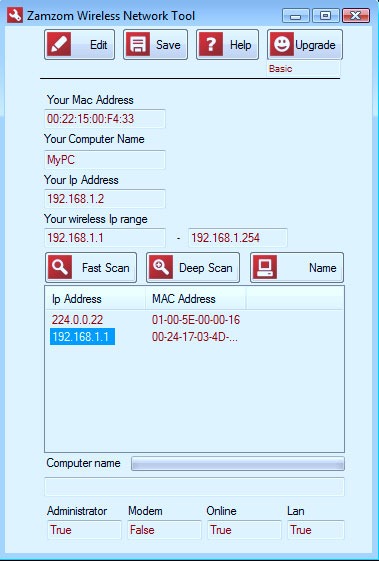
ZamZom provides a great freeware Wi-Fi utility which can detect all the suspicious computers using your W-Fi internet connection.
Check Computers Using Your Wi-Fi Connection
So you can download the utility from ZamZom official website and use it as you want as its is a freeware so no trial limit or anything.

10 Common Wi-Fi Problem and Fast Fixes to Overcome Them

Wireless technology just changed everything from crappy wires to easy portable network, but still every good thing brings something painful right with it so people face many Wi-Fi problems and we are just going to discus the most common 10 problem people usually face with their Wi-Fi. Well we have some easy solutions that might solve your problem.

#1. I cannot connect to my router, How do I resolve this ?

This is the major problem with many causes and can hit any kind of router no matter it’s the expensive one or just a normal one.
  1. If this problem occurs to you make sure that your router is configured to Dynamic Host Configuration Protocol (DHCP). If its is just try to disable and re-enable it.
  2. The second thing you can try is disabling the WEP security, because this security can interfere and drop your IP address.
  3. The last thing you can check for are the electrical interference something like microwave, alarm clock or any other thing that be interfering with your Wi-Fi router so disabling those devices may help you out.
If you are still not able to get your laptop connected to the router than you can simply reboot your router and computer and than restart again to see if now its working.

#2. What steps should I take to secure my Wi-Fi network ?

This is the normal question that arises in everyone’s mind when they first purchase a new router and get a new broadband connection fit in their house. They just want no outside intruder can access their connection except them so normally there are some steps you can take officially to protect your Wi-Fi Network.
  1. Wi-Fi Router normally comes with a WEP and WPA security encryption in which WPA is the best as it allows you to add numbers and words for premium security. Now to enable this security go to router administrator page by accessing 192.168.0.1 or 192.168.1.1, now under Wireless Security click on enable WPA and add your key and than press save and your router will reboot.
  2. The second thing you can do is Disabling the SSID (Service Set Identifier) broadcasting, so that hackers are not able to see my Wi-Fi network and this will some relief.
  3. The third can be done is too enable the router’s hardware firewall, that will block any suspicious connection.
  4. The last thing you can do is to disable the file sharing option for optimum security.

#3. How do I open ports on my router ?

Many functions and applications like personal web server, online gaming, IP Webcams, FTP Servers require you to open ports on your router to allow outside request to be sent to an internal computer on a home network. Well this procedure is called port forwarding and is pretty simple and can be done on any router with slight change in steps.
Open your router’s administrative page and find the label called Port Forwarding. Now just enter the service name and type your start port and end port numbers. If you are opening only one port than enter same numbers in both fields. Now select TCP as the protocol and click on OK. You can even check your routers website for more detailed instructions.

#4. How to I extend range of my wireless signal ?

Well this is just a long matter of discussion and many ideas can go wrong but still people try to experiment and come up with some innovative concepts on getting your signal pumped up.

#5. How to automatically connect to a Wi-Fi network ?

Sometimes you just want to connect to any network available in your area or maybe somewhere outside, it can be like that Wi-Fi connection does not have any security enabled and its is allowing you to connect but you just want that when ever you are in that range you are connected automatically than follow below steps.
  1. Go to Control Panel > Network Connections, now right click on your wireless network.
  2. Now click Properties > Wireless Networks > Advanced.
  3. Now check out if Radio button next to any preferred network is on just change it too any NON-Preferred network.
  4. Now you will automatically connect to any network in your wireless range.

#6. Which wireless channel should I use ?

Wireless 802.11b and 802.11g routers have at-least 11 channels and some routers come with 6 channel as default. Now if you are experiencing any problems or interference with your neighbor's router. So you can change your wireless channel to avoid any interference, well you can change your channel by going to routers administrator page and than under wireless settings option choose channels and switch to anything else from 1 - 11.

#7. How do I share files on a wireless network ?

You can share files between your computers over a wireless network easily by just configuring it to one workgroup. Now enable file sharing in Windows. Now just right click on the folder you want to share and choose sharing and security from the right context menu and click on sharing tab. Now put check in the folder labeled "Share this folder on a network" and "Allow network users to change my files" to enable other to modify your documents.

#8. Should I allow other people to access my Wi-Fi Service ?

Wi-Fi sharing does not have any potential harm but still some dirty minds can crack out your back, so its recommended that you should not share your internet connection with any stranger or outside intruder. Now if you still want to share your internet connection make sure your firewall is one and file sharing is disabled.

#9. Should I worry about packet sniffer's ?

Well obviously yes packet sniffers can sniff out all the activity you are attempting on that particular Wi-Fi connection, they can read your emails, check out which websites are you visiting and pretty much everything attempted on non secure network, but well yes they will not be able to see your transaction over a HTTPS secured network, so your bank transactions and other e-commerce purchase are still secured.
Well to make this much more secured you can use a VPN network and than you will hide everything from them.

#10. What is a router’s hardware firewall ?

Router’s hardware firewall simply protects your incoming and outgoing connections, so it includes a Network Address Translation (NAT) capabilities that will make your PC invisible to anyone trying to attack it. So now if you enable a hardware firewall you do not need to have any third party firewall enabled on your PC.
So these were pretty much 10 common problem a person might face using there Wi-Fi network, but well obviously they all have some solution :)

How to Recover Data from a Dead Hard Drive Easily

You might be using a good memory hard drive for storing out your important data, movies, office files and many other stuff, but many times it happens that your hard drive gets corrupted in form of its life going to be end, well if that’s the case and you have left with some last minutes for recovering your data before it simply goes black out than we have a simple freezing out idea which will surely help you in recovering your data from your dead hard drive.
hard drive in freezer
Freezing your hard drive surely increases its lifetime but you do not have to freeze it and than attach it but the trick you are going to use here is to putting your hard drive in a leak free water bag obviously without any water in it and than keeping it in the refrigerator with cables attached and than starting your recovery process this will increase your maximum time for recovery process.
Hopefully this will allow you to recover all your data from your hard drive and transfer it successfully to your new drive.


How to Locate and Unlock Tata Photon+ Device Password

If you usually use a shared Internet Dongle than you might come across a problem of device locking on daily basis. You friend might lock the device for some hours so that you cannot use it. Well you might be thinking that if there is any way to sneak into the device and snatch up the password to unlock the device. Well below is the simple workaround which you follow to get your password and login to your device.
Well this tutorial is just educational purpose, so that in difficult times you have the ability to get your device lock free, do not use this on unauthorized dongle device. Just follow the below steps.
  1. Navigate to C:\Program Files\Tata Photon+\Huawei\userdata [Installation Folder]
  2. Now open usersetting.xml the code in it will look something like below.


  3. Well you might be able to see that LockPassword line containing your password in between opening and closing tags that's 1234, it might be something else for your dongle but this is the password and now you can use it to unlock your device.
  4. Well hopefully this trick will work and will benefit you overall


20 security and privacy apps for Androids and iPhones

HiddenEye
HiddenEye Plus uses your smartphone's camera in self-defense: This app photographs any person who tries to unlock your phone.
Available for: Android
Cost: Free
Average marketplace rating: 3.9 stars


Kryptos
Kryptos uses 256-bit AES encryption to encrypt voice communications before transmission (using 2048 bit RSA for key exchange). Provides VoIP connectivity for secure calls over 3G, 4G and WiFi.
Available for: Android and iPhone
Cost: Free to download, monthly service fee of $10
Average marketplace rating: 3.3 stars


Find my iPhone
If you misplace your iPhone, the Find My iPhone app will let you use another iOS device to find it and protect your data. Locates the missing device on a map, plays a sound, displays a message, remotely locks the device and/or erases all the data on it.
Available for: iPhone
Cost: Free
Average marketplace rating: 2.5 stars

SeekDroid
SeekDroid (similar to Find My iPhone) allows the user to locate a lost or stolen Android device. Features device location on a map, remote audible alarm, remote wiping of the device, remote tracking and GPS.
Available for: Android
Cost: $2.99
Average marketplace rating: 4.5 stars

Plan B
Plan B is a find-my-phone app that you download AFTER you lose your phone. Described as a “last resort” to find a missing phone, allows the user to locate their lost device using cell towers and GPS. On some phones, Plan B can switch GPS on automatically.
Available for: Android
Cost: Free
Average marketplace rating: 4.2 stars

Secure Folder PRO
A private storage solution for photos, videos, contacts, notes, credit cards and passwords. Features secret website bookmarks and private navigation system without history tracking, a “decoy” storage area to trick nosy intruders, and encrypted storage for credit card and other data.
Available for: iPhone
Cost: $1.99
Average marketplace rating: 4.5 stars

Gallery Lock
Gallery Lock provides privacy for picture and video files by hiding them in individual, password-protected folders.
Available for: Android
Cost: Free
Average marketplace rating: 4.5 stars

Privacy Filter
Privacy Filter blocks the screen from prying eyes glancing at the device from the side.
Available for: Android
Cost: $1.99
Average marketplace rating: 4.2 stars

Splash ID Safe
A sensitive-data vault that stores personal information (such as web logins, credit cards, PINs, and email settings) using 256-bit encryption.
Available for: Android
Cost: $9.99
Average marketplace rating: 3.8 stars

Norton Snap
Norton Snap is a QR code scanner that warns the device user about dangerous QR codes, and blocks unsafe Web sites before they load on the device.
Available for: Android and iPhone
Cost: Free
Average marketplace rating: 4.3 stars

Avast Free Mobile Security
Famous from the PC space, Avast also offers this antivirus and anti-theft Android security application. Includes scanning of installed apps and memory card content on demand. Also features a privacy report, which scans and displays access rights and intents of installed apps, as well as anti-theft components that give the user remote control via SMS or Web to lock, locate, siren, memory or wipe the device.
Available for: Android
Cost: Free
Average marketplace rating: 4.7 stars

Lookout Mobile Security
The Android version of this app includes antivirus and blocks malware, spyware, and trojans and scans each app downloaded. Both the Android and iPhone versions feature a find-my-phone component, which locates a lost or stolen phone on a Google map and activates a loud alarm, even if the device is on silent.
Available for: Android, limited version for iPhone
Cost: Free
Average marketplace rating: 4.5 stars

AVG Mobilation Antivirus
AVG's version of antivirus for smartphones detects harmful apps and text messages. Features include scanning of apps, settings, files, and media in real time, location of lost or stolen phone via Google Maps, lock and wipe device to protect privacy.
Available for: Android
Cost: Free
Average marketplace rating: 4.5 stars

Norton Mobile Security
Security, antivirus, antitheft protection. Includes automatic antivirus scan for downloaded apps and app updates, keystroke logging protection, remote lock and wipe, find-my-phone phone locator, and a “scream” locator that lets the user send a text to the missing phone, which sets off a scream alarm.
Available for: Android
Cost: Free
Average marketplace rating: 4.4 stars

NQ Mobile
Security and antivirus protection against from virus, malware, spyware, trojans and phone hacking. Features include: antivirus, anti-harassment, privacy protection, phone locator, data backup, safe browsing and traffic.
Available for: Android
Cost: Free
Average marketplace rating: 4.5 stars

McAfee Mobile Security
McAfee's version of protection for the Android; features antivirus, anti-theft, safe mobile surfing, app protection and call and SMS filter. Other features include remote device lock, locate and track.
Available for: Android
Cost: Free trial
Average marketplace rating: 4.0 stars

Accellion Mobile
Allows business users to work on enterprise content by providing secure mobile access to files. Features: Securely browse, view, edit, save back, upload, send, and share files and folders on-the-go. Participate in real-time collaboration by opening, editing, and saving back Microsoft Office file types through Quickoffice.
Available for: Android and iPhone
Cost: Free
Average marketplace rating: 3.2 stars

Junos Pulse
Junos Pulse secures connectivity to corporate web-based applications via Juniper Networks SSL VPN gateways. Also delivers mobile security against malware, viruses, and spyware, as well as from device loss or theft, preventing device damage, and loss and exploitation of sensitive user or corporate data.
Available for: Android and iPhone
Cost: Free
Average marketplace rating: 3.5 stars

WiFi Protector
Guards against WiFi sniffing attacks by detecting Address Resolution Protocol (ARP)-related attacks, such a DDOS (Denial Of Service) or MITM (Man In The Middle). Protects the phone from tools like FaceNiff, Cain & Abel, ANTI, ettercap, DroidSheep, NetCut, and others that try to hijack sessions via "Man In The Middle" through ARP spoofing / ARP poisoning.
Available for: Android
Cost: $3.89
Average marketplace rating: 4.7 stars

Privacy Safe
Automatically moves confidential SMS and call logs from private contacts into private space and hides the normal track on your phone. Notifies of private space status secretly. Private space is password protected. Also blocks unwanted SMS using keywords specified by the owner.
Available on: Android
Cost: Free
Average marketplace rating: 4.5 stars


Windows 7 Crashes On Connecting Portable Device or Media Device

Microsoft has recently announced a problem identified with certain third party portable devices and media devices which may crash Windows 7 and Windows Server 2008 R2 operating systems. This problem is caused because of a Windows in-built driver race condition on attaching certain devices to Windows 7Computer. There has been no announcement about the list of such devices by Microsoft.
windows-7-logo
The error or the Blue Screen Of Death which appears on detecting such devices display a message something like :
STOP: 0×00000001 (parameter1, parameter2, parameter3, parameter4) APC_INDEX_MISMATCH.
Microsoft has officially shared this problem at this support page. The fix for this problem will be rolled out with the official service pack 1 or the Windows 7 which may arrive around mid of year 2011. Till then, Microsoft has released a hotfix (link at the end of article) which will fix this issue.

So if you have every experienced that your Windows 7 desktop or laptop computer crashes on attaching certain portable device or certain media device, then it is advisable to download the hotfix and install it on your Windows 7 or Windows Server 2008 R2 OS.

Tweak Registry to Fast Shutdown Windows XP and Vista

When ever you click the shutdown button on your PC running Windows XP or Vista it usually stand still without any activity and sometimes blinks, well at that stage it just closing all the applications and it might take some minutes, but I just found a easy registry tweak that can make that process actually very fast just follow below steps and you will be able to shutdown at a pace of time.
Well we are going to tweak the registry entries so its basically a technical work if you are not comfortable with editing your registry than you should not do it without consulting any of your good geek friend. So follow below steps separately for Windows XP and Vista.

For Windows XP follow below steps ::

  1. Click Start > Run or Press Windows + R key and type down regedit to open the registry editor. (Make sure to backup your registry by going to File > Export)
  2. Now navigate to HKEY_CURRENT_USER > Control Panel > Desktop and on the right hand side check for WaitToKillAppTimeout entry and double click on it.
  3. Now just change it value in between 4000 to 5000 well the more value the faster it will show the end task dialog. This value is basically in milliseconds.
  4. Now with this we have tweaked to show the End Task dialog as soon as the time expires now we have to tweak another entry to not show the End Task Dialog and directly turn off the system.
  5. Again navigate to HKEY_CURRENT_USER > Control Panel > Desktop and on the right hand side search for AutoEndTasks entry and double click on it and change its value from 0 to 1.
  6. Boom now your Windows XP shutting down speed is tweaked and you can restart and see its working on second shutdown.


For Windows Vista follow below steps ::

  1. Open registry editor and navigate to HKEY_LOCAL_MACHINESYSTEMCurrentControlSetControl and on the right hand side check for WaitToKillServiceTimeout entry and double click on it and change its value to 5000 something.
  2. That’s it you do not need to do any other tweak for vista but just restart and check if its working or not.
Hope this tutorial works for you make sure to comment if you find out any problems modifying your registry entry.


Batch Reply for Gmail can Respond to Multiple Emails at Once

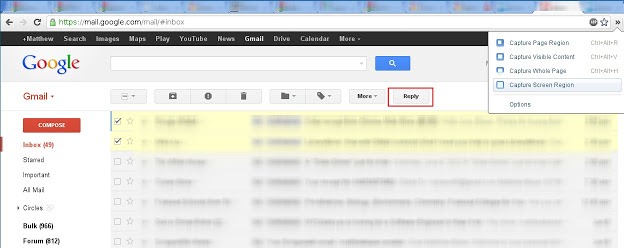
If you are the person who receives emails in bulk amount, I mean lot of them for just one same reply. If you just have to select reply for every email and than write down the same stuff again and again than Batch Reply for Gmail extension is just meant for you. It a simple chrome extension than allows you to email multiple persons at once with the same reply. You just select the emails and than hit the same reply button as usual.
batch-reply-chrome
This chrome extension does not add any other separate button for doing this task, as soon as you install this extension in your chrome browser you will just have to select few emails to which you wanna the same thing and than press the reply button that’s it. So now if you a teacher or event manager and you get the same reply from your students or people than you can select all those emails and reply them at once with the same reply.


How to Fix an iPhone's Unresponsive Home Button? Four Solutions You Can Try


Fix iPhone Unresponsive Home Button

How to Fix an iPhone's Unresponsive Home Button?

Four methods that could possibly solve an unresponsive Home button on your iPhone. You can try them and see if it solves your problem before you decide to take it for repairs or replace it altogether. Who knows, maybe it can save you a good deal of money if you try out these solutions.

** WARNING **


Askfundoo will not be held responsible if you damage your iOS device while performing one of these steps improperly. So proceed with absolute caution and understand the risks involved.

Solution #1: Recablibrate Your iPhone's Home Button

Fix iPhone Unresponsive Home Button Recalibrate
Despite the iPhone's great build and quality, sometimes the problem lies with the software itself. In this case, you will simply need to re-calibrate your home button. To perform this, simply perform the steps below:
  1. Launch any of the iOS's stock applications like Weather, Stocks, Settings etc.
  2. Once the app has been launched, press and hold the Power button for a few seconds and the "Slide to Power Off" screen should appear.
  3. Now press and hold your iDevice's Home button until the "Slide to Power Off" screen disappears followed by the stock app force quit. After that the screen will return to the Springboard.
If this solved your problem, then consider yourself very lucky. If you are jailbroken, just make sure that none of your Activator gestures conflict with the steps above.


Solution #2: Realigning the Docking Port

Fix iPhone Unresponsive Home Button Realign
If the software fix above did not solve your problem, then it is likely that there is something wrong with the hardware itself. Through wear and tear, it is quite possible that the iPhone's docking port got misaligned. In that case, you can try to realign the docking port by yourself as suggested by this YouTube user.
Plug a USB cable into the iPhone. Next, gently push down (with minimal pressure) on the 30-pin connector in a way that it pushes up behind the home button. While the pressure is being applied, click the Home button a few times. Promptly remove the cable and see if your Home button works properly.


Solution #3: Cleaning the Home Button

Fix iPhone Unresponsive Home Button Cleaning
Anything from your sticky hands to the dirt inside your pocket can damage your iPhone and cause an unresponsive Home button problem. In this case, you might need to clean your Home button now.
You can clean your Home Button using a 98-99 percent isopropyl alcohol which can be bought easily in stores. Get an eye-dropper, cotton swab, or tissue and use it to apply 2-3 drops of isopropyl alcohol straight into the Home button while avoiding the screen. Next, take a dull object such as the eraser at the back of a pencil and use it to repeatedly tap the Home button. This will allow the alcohol to seep right into the frame. Wipe it off completely and wait for it to dry for about 10-15 minutes and see if it fixes your Home button.


Solution #4: Enable On-Screen Home Button With Assistive Touch

Fix iPhone Unresponsive Home Button Assistive Touch
If the above solutions don't work for you, then it looks like you got yourself a completely busted Home button. It will most likely need to undergo professional repairs. And if that is not an option at the moment, here is a solution that will let you use your iPhone even without a functional Home button. This can be a temporary solution until you can get yourself a new unit or have your current one repaired. Fortunately, you can still use your device by enabling the on-screen Home button via Assistive Touch. This is generally used as an accessibility option, but it also be used for those who have busted Home buttons.
Assistive Touch will create an on-screen button that will allow you to access several options: Home, Siri, More, and Favorites. To enable the said on-screen home button, navigate to Settings > General > Accessibility > Assistive Touch. Enable Assistive Touch, and you should see a small circle appear on screen.
In your case, you can simply ignore the Favorites selection. Whenever you need to use your Home button, just tap the on-screen Home button. This is also applicable if you wish to access Siri and other options. If you find the onscreen button intrusive, just tap it and drag it anywhere else along the edge of the screen. This isn't the most convenient solution, but it should help you use your device for the meantime.
So did any of the solutions above fix your problem? If it did, then kindly share your experiences in the comment section or you can leave a comment if you wish to share other tips on how to fix an iPhone's unresponsive Home button.

How to Quickly Disable Internet Connection on your Computer

Internet has revolutionized our lives providing a way for people to work and get in contact with people all over the world, but basically its merely used for social networking purpose for than any business kind of use. So everyday tasks might not get done if you get busy working on internet and doing some stuff online, well the only way is too disable out your internet connection so that you can complete your other work easily. There is a way that will simply toggle your Network Adapter status hence disabling it and after wards enabling it again.
disable-internet-connection
He suggests a .bat file that can be used to easily toggle your Network Adapter without going into deep control panel settings. A simple file that once clicked will disable the internet connection and when you click it again it will again enable it and start your internet.
So anytime you feel like you wanna get rid off the internet fro sometime and wanna complete out the work left by you than just use this Toggle-Internet.bat file and run it as an administrator. Now as soon as you run it it will disable your internet connection.
Now afterwards if you wanna get back your internet connection simply run it again as an administrator. It will start your internet connection again. If you wanna do this this manually than you can navigate to Control Panel > Network and Internet > View Network Status > Change Adapter Settings.
So I hope this will surely help you in getting your internet off.


How to check 2g,3g data balance left in mobile data card sim?

Following are the procedure to check internet data balance left in Mobile or in 2G , 3G E-Stick / Dongle for various Indian operators

Operator Name Dial to Check Data Balance ( USSD )
Airtel 2G & 3G *123*10#
AIRCEL 2G & 3G *123#
BSNL 2G & 3G *112# – Reply/Send “2″ For GPRS Day
Idea 2g & 3g Check SMS Inbox for balance left – check note
Dial *125#
MTNL
*444#
Reliance GSM SMART 2G & 3G
*333#   Reply 1,3,1 Mobile Broadband Balance or
Dial *367*3# or
Send SMS “MBAL” to 55333 and you will Get a reply (for details check screenshot below)
Tata Docomo 2G & 3G *111*1#
Vodafone 2G & 3G                    *111*6# for Prepaid
For Postpaid Dial *777*7*MDN# 
MDN = 10 Digit Device/Dongle/Mobile No.
Videocon 2G & 3G *123#


Top 10 Cydia Sources (Repos) of 2012

Top 10 Cydia Sources (Repos) of 2012

Now that the iOS 5.0.1 untethered jailbreak is finally out, it is safe to say that you should now be ready for some downloading frenzy of jailbreak tweaks and apps. But before you can download and install any free, premium or cracked jailbreak apps, you need to add the proper Cydia repositories. Today, we will be providing you the list of the top 10 Cydia sources or repositories for the year 2012.

Top 10 Cydia Source 2012

BiteYourApple

BiteYourApple Repo_1
This repo contains a wide range of apps, mods and ringtones for your iPhone. This is one of those all-in-one repos that holds some highly popular and useful Cydia apps and tweaks. It even contains some new jailbreak tweaks for the iOS 5. Definitely a Cydia source that is worth adding.
http://repo.biteyourapple.net
BiteYourApple Repo 2
Apps to Look Out For: UISettings-iOS5, Springtomize 2, SMS+, iBlacklist, iFile, Infiniboard, Infinidock, Infinifolders, Graviboard, GravityLockScreen, Dreamboard


P0dulo

P0dulo Repo 1
Not a very well-known repository but once you browse the content of this repo, you will find that it contains a wide range of pretty much anything. Apps, tweaks, utilities, addons, themes, ringtones, emulators, you name it. The number of content is not that high but it makes up for the quality.
http://p0dulo.com
P0dulo Repo 2
Apps to Look Out For: Auto3G, Barrel, Graviboard, Gridlock, Infinidock, Infinifolders, Move LockScreen to Unlock, RetinaPad, Multifl0w

HackYouriPhone

HackYouriPhone Repo 1
Now the contents of this particular repo is ridiculously huge, it is almost overwhelming. The usual roundup of apps, tweaks, ringtones, themes, mods are here along with IPAs and even DLC (downloadable content) for App Store apps. Some of the entries are in Italian but they're not that prevalent. Another must-have repository.
http://repo.hackyouriphone.org
HackYouriPhone Repo 2
Apps to Look Out For: BBSettings, BeyondSMS, biteSMS, CallBar, CleverPin, FolderLock, FoldersInFolders, Infiniboard, Infinidock, RetinaPad

iCauseFX

iCauseFX Repo 1
Another repository that is rich in content. One thing that you will notice about this Cydia source is the wealthy selection of themes although there is no shortage of apps and tweaks to be found in here. We recommend that you install the iCauseFx repo icons after adding this source for easier package browsing.
http://repo.icausefx.com/
iCauseFX Repo 2
Apps to Look Out For: Barrel 2, BBSettings, 3G Unrestrictor, UISettings, AdBlock, Insomnia Pro, Lockdown Pro, LockInfo

iHacks

iHacks Repo 1
iHacks is yet another repo that has pretty much anything. Apps, tweaks, HD themes, utilities, ringtones and even themes for SBSettings. It also features some unlockable DLCs and hacks for App Store games. Another essential repo that any jailbreak enthusiast should have.
http://ihacksrepo.com
iHacks Repo 2
Apps to Look Out For: Applocker, AndroidLock XT, biteSMS, RetinaPad, FaceBreak, SleepFX, SMS+, Springtomize 2, WeeSearch Pro for Notification Center, Infiniboard, Infinidock, Inifinifolders

PwnCenter

PwnCenter Repo 1
When it comes to ringtones, themes and wallpaper, then you can't go wrong with this source. This repo specializes in hosting multimedia content rather than the usual apps and tweaks. Again this repo hardly has any tweak or app, so if those are what you are looking for, then you might want to look elsewhere.
http://apt.pwncenter.com
PwnCenter Repo 2
Apps to Look Out For: FiveDockRows, Fix Safari Cookies, not many notable apps here but you will find tons of themes, ringtones and wallpaper.

Insanelyi

Insanelyi Repo 1
When it comes to cracked apps, this particular repo doesn't have that many to offer as compared to the other repos on this list. However, if you are looking to customize your iPhone, iPad or iPod touch, then you should definitely add this Cydia source. You will be blown away by the number of themes that are contained here.
http://repo.insanelyi.com
Insanelyi Repo 2
Apps to Look Out For: AppSync for 3.1/3.2/4.0+/5.0+, Auto3G, Barrel 2, iBlacklist, iFile, Insomnia Pro, LockInfo, LockLauncher, Move2Unlock, Multifl0w, NoSpot.

xSellize

xSellize Repo 1
xSellize is the repo of choice for those who are fans of playing emulated games. This repo hosts a good deal of ROM packs for Game Boy Advance, Nintendo 64 and NES which of course you can load on your emulators. Aside from emulators and ROMS, xSellize packs the usual assortment of apps, tweaks, mods and so on. Again, try to install xSellize's Repo Icon package so you can browse its content a whole lot easier.
http://cydia.xsellize.com
xSellize Repo 2
Apps to Look Out For: AdBlock, AndroidLock XT, Appfront, AppSync 4.0+/5.0+, iBlacklist, FolderLock, FoldersInFolders, Graviboard, GravityLockScreen, Gridlock, Safari Upload Enabler, SleepFX, Springtomize 2

Hackulo.us

Hackulous Repo 1
It should be safe to say that Hackulo.us repo is one of the most popular repositories available. This is largely because of the fact that it hosts Installous, an application that lets jailbreak users download cracked apps that are found in the iTunes App Store for free. A perfect solution for those who can't afford buying from the App Store, those who are somehow unable to buy from the App Store and those who want to try out an app before actually spending money on it.
http://cydia.hackulo.us
Hackulous Repo 2
Apps to Look Out For: AppSync for iOS 3.1/3.2/4.0+/5.0+, Installous 4 and Crackulous

SiNfuL iPhone

SiNfuL iPhone Repo
If cracked apps and freebies are what you are after, then SiNfuL iPhone is definitely your go-to repo. It doesn't necessarily have the number of content that other repos have but it makes up for its quality as it contains cracked versions of some of the most popular Cydia apps and tweaks. This particular source has an official forum with a community of about 300,000 strong.
http://sinfuliphonerepo.com
SiNfuL iPhone Repo 2
Apps to Look Out For: AdBlocker, AndroidLock XT, Barrel, biteSMS, CallBar, FaceBreak, FolderEnhancer, FolderLock, iFile, Infinidock, LockInfo, Multifl0w, PkgBackup, Springtomize 2, Zephyr, 3G Unrestrictor

Top 10 Cydia Sources (Repos) of 2011

Top 10 Cydia Sources (Repos) of 2011

Here is a list of top 10 Cydia sources for year 2011. With these cydia repositories, you can find, download and install almost any free, premium or cracked Cydia apps on your iPhone, iPod Touch and iPad. By adding these sources to Cydia, you can access hundreds or even thousands of HD themes, games, ringtones and tweaks for free. I haven't included standard Cydia repos like BigBoss, ModMyi, iSpazio and Telesphoreo Tangelo repo as these sources are pre-added to Cydia by default whenever you jailbreak your iDevice.
SEE ALSO: Best Cydia Sources 2012


SiNfuL Cydia Sources:

If you are looking for cracked apps, you should go for this repo. SiNfuL iPhone repo contains cracks of all famous Cydia apps including iFile, BiteSMS, MyWi and Multifl0w etc. Other than cracked Cydia apps, you can find tons of tweaks and mod apps
Sinful iPhone Source
** Best Cydia Source: **
SiNfuL iPhone Repo Address: http://sinfuliphonerepo.com
Famous Apps: AndroidLock, FaceBreak, Infinidock, Install0us, iRealSMS, MyWi, Multifl0w, YourTube, AppIconReOrder, Attachment Saver, AutoSilent, BiteSMS, Chronus, Full Preview, HapticPro, iBlacklist, iBlueNova, iFile and all famous emulators including GameBoy and NES emulator.

Hackulo.us Repo (Best cydia repositorie):

Hackulo.us is the best repo for people who can't afford to buy apps from App Store. Most of people add this repo to Cydia because it has got Installous which allows you to download premium App Store apps and try them out before you may make a final purchase.
Hackulo.us Source
Hackulo.us Repo Address: http://cydia.hackulo.us
Famous Apps: AppSync for iOS 4.0+, Installous 4 and Crackulous

xSellize Repo:

xSellize is the best Cydia repo for those who love to play emulator games. It contains a bunch of ROM packs for Game Boy Advance, Nintendo 64 and NES emulator. In each ROM pack, you can get around 50 to 60 games which you can play on these emulators. Other than game ROMs and emulators, it has got some awesome HD themes and Bluetooth tweaks for all iPhone and iPod Touch users.
xSellize Source
xSellize Repo Address:
http://xsellize.comhttp://apt.xsellize.comhttp://cydia.xsellize.com
Famous Apps: CategoriesSB, CLASSified HD, Crimson HD, Cycorder, Cyntact, Element Mod, Elite PRO HD, ROMs and emulators etc

Insanelyi Repo:

The Insanelyi repo contains many Retina Display ready packages for your iPhone 4 and iPod Touch 4G. Other than that, you can find great tweaks and modding apps for iDevices running iOS 4.0 or above. The Insanelyi repo has got a small proportion of cracked apps as well but overall it is a nice Cydia repo for those who love to theme their iPhones and iPod Touches.

Insanelyi Repo Address: http://repo.insanelyi.com
Famous Apps: Adelis HD, AndroidLock XT, AnyRing, App Switcher (Brightness, volume and rotator), AppSync for 3.1/3.2/4.0/4.1/4.2, AttachmentSaver, Auto3G and Barrel etc

iHacksRepo:

iHacksRepo is probably the best Cydia source for iPhone 4 and iPod Touch 4G users. It has almost all essential tweaks and mods which you will find in xSellize and SiNfuL iPhone repo. It has got an awesome collection of game ROMs, emulators, HD themes and other must have mods which you can try on any iDevice jailbroken on iOS 4.0 or above.

iHacksRepo Address: http://ihacksrepo.com
Famous Apps: FolderEnhancer, FoldersInFolders, FreeSync, FullScreen for Safari, Gingerbread HD, GPower Pro, Graviboard, GridTab for Safari, Infiniboard, Infinidock, Inifinifolders, Instant Mirror, Auto3G, Frash, FaceBreak, iClassic, iFile and YourTube HD etc

HackYouriPhone Repo:

HackYouriPhone repo is basically an Italian Cydia source which is full of great themes, animated lockscreens and tweaks which you can try on your iPhone, iPod Touch and iPad. There are plenty of lockscreen mods and HD themes available in this source for iPhone 4 and iPod Touch 4G users.

HackYouriPhone Address: http://repo.hackyouriphone.org
Famous Apps: AndroidLock, App Switcher Brightness, AppSync, Auto Shutdown, Auto Silent, Backgrounder, Black'UPS Darkness HD, 3G Unrestrictor, CallClear, CallLock, CameraButtons, iFake, iSHSHit and LockInfo plugins.

BiteYourApple Repo:

BiteYourApple repo is another great Cydia source with tons of great themes, ringtones and mods for all iDevices. If you want to add Hackulo.us, go for this source because it contains all packages of Hackulo.us source as well as tons of other interesting Cydia apps.
BiteYourApple Source
BiteYourApple Address: http://repo.biteyourapple.net
Famous Apps: Wifi Sync, Folder Enhancer, Frash Toggle, zToggle, Full Screen for Safari, Gridlock, Home Page in Safari, GroupSMS, Insomnia Pro and Inspell app etc

iPhoneCake Repo:

Just like Hackulo.us is used to install Installous app, iPhoneCake repo is used to install AppCake app. Installous and AppCake, both works in a same way but what's cool about AppCake app is that it not only allows you to download and try premium App Store apps but also allows you to access and download cracked Cydia apps at the same time. iPhoneCake repo has its own official website which allows you to search and download all kinds of free and premium App Store apps directly to your computer. Once downloaded, you can install the downloaded apps (.IPA) via iTunes.
iPhoneCake Source
iPhoneCake Repo Address: http://cydia.iphonecake.com
Famous Apps: Asphalt 5, FIFA '11,Street Fighter IV, Angry Birds, Safari Download Manager, GTA: Chinatown Wars, iSteamy, The Settlers, TVUPlayer, NFS Shift and many more.

YourCydiaRepo:

You will hardly find any theme, wallpaper or soundboard on this repo but you can find almost all tweaks and mod apps you can think of. There is no cracked app in this repo, so you will either find completely free or paid apps. Overall its a great source for those who are interested in tweaking their iPhone and iPod Touch with some cool Cydia hacks.
YourCydiaRepo Source
YourCydiaRepo Address: http://yourcydiarepo.org
Famous Apps: PwnTunes, MobileTerminal, SBRotator, biteSMS, Infiniboard, Infinidock, iSilent and many more.
Status: Currently Unavailable.

P0dulo Cydia Source:

Not many of you must have heard the name of this repo but believe me, this is the repo where you can find anything. At P0dulo repo, you will find tons of themes, ringtones, tweaks and a lot of games.
P0dulo Source
P0dulo Address:
http://podulo.comhttp://p0dulo.com
Famous Apps: Infinidock, Infiniboard